
How to open / activate / running SFTP Server
Cara mengaktifkan / membuka / menjalankan SFTP Server (Secure file transfer program) di laptop / desktop kita
01. Install freeFTPd application | pasang aplikasi freeFTPd di laptop / desktop. Silakan unduh instaler disini freeFTPd.exe
02. Turn off an antivirus | Matikan antivirus di laptop / desktop
03. Turn off firewall | matikan firewall di laptop / desktop
04. Special case if want to download files for Ericsson Baseband Commissiong, config Ethernet ip address on "Local Area Connection" | Khusus untuk unduh file pada saat commissioning Baseband Ericsson, setel ip address di "Local Area Connection" dimana kabel LAN terhubung
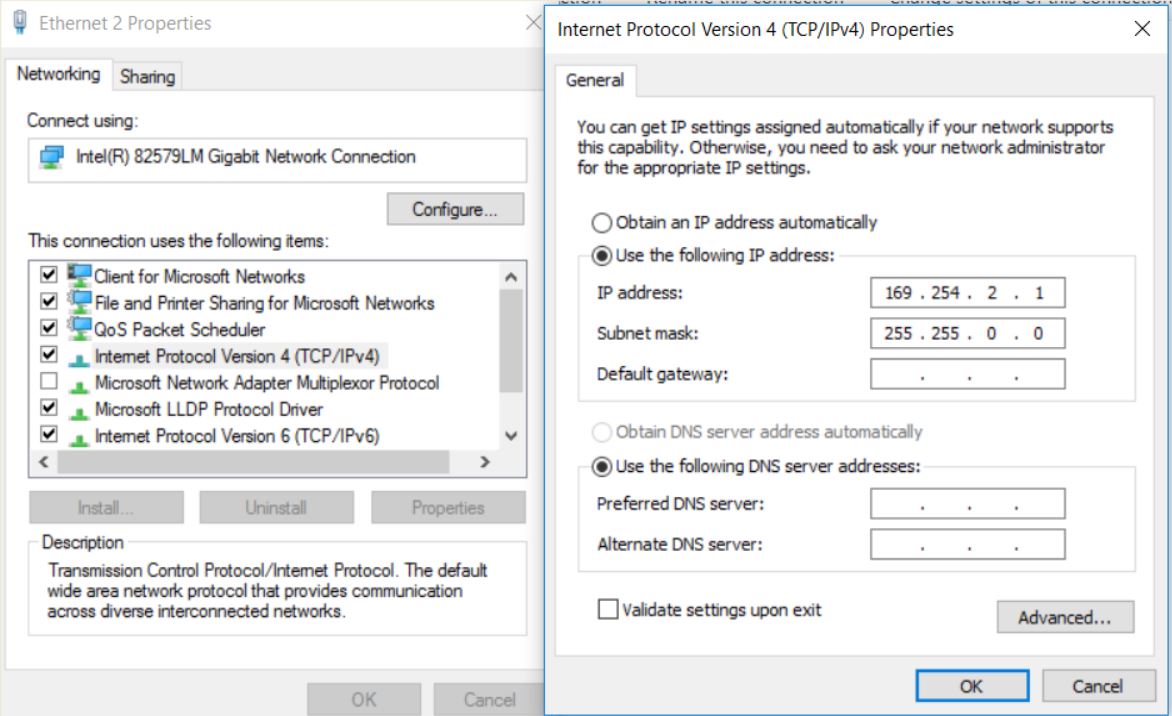
Ericsson Baseband 6630 / 5216 / 5212, laptop ip address setting on ethernet (LAN RJ45 connection)
Ip address (laptop) : 169.254.2.1
Subnet mask : 255.255.0.0
Baseband 6630 / 5216 / 5212 oam ip address default : 169.254.2.2
05. Open and Create user to access SFTP server | buat akun yang bisa mengakses SFTP server
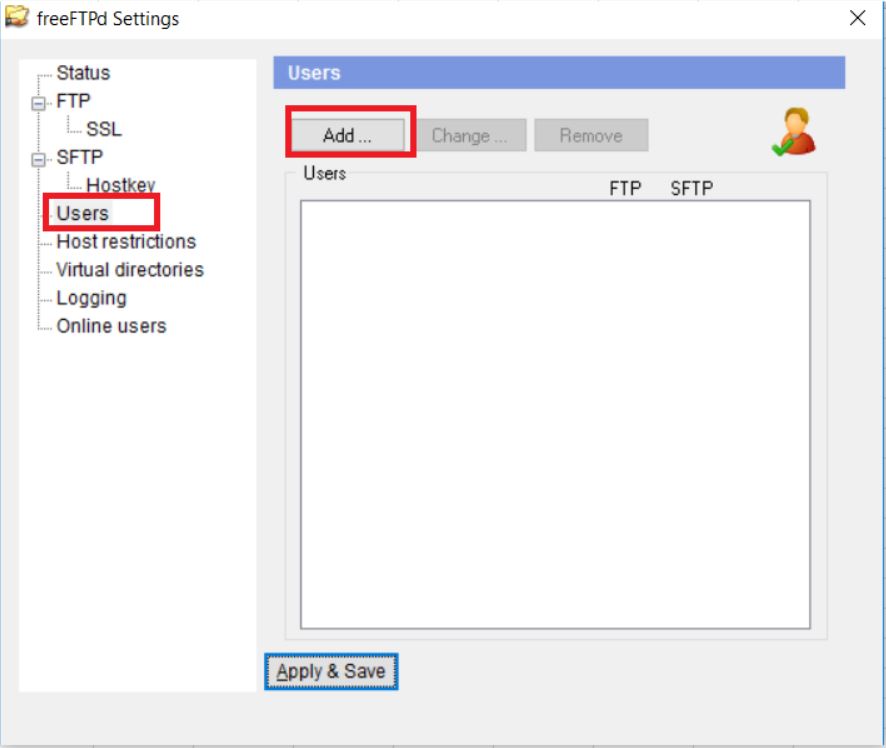
Open freeFTPd application
click "Users" and "Add"
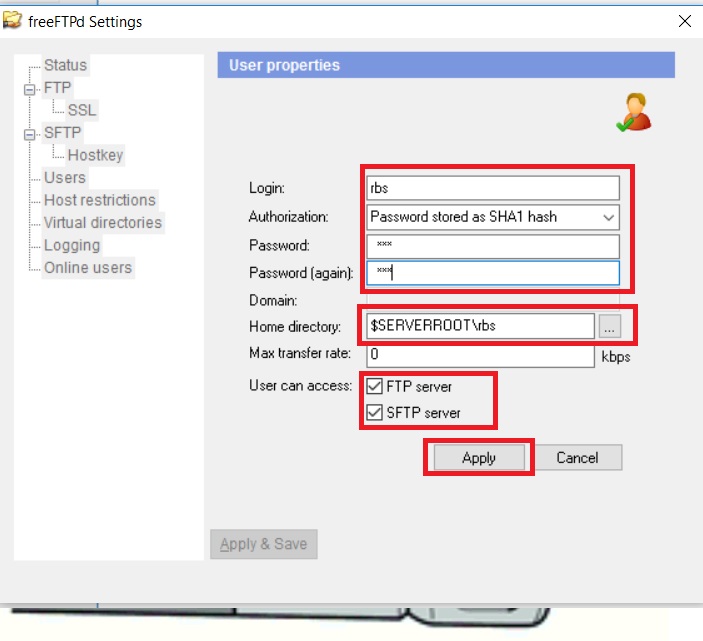
fill up login (user id) for the example "rbs"
Autorization with "Password stored as SHA1 hash"
Password (user password) for the example "rbs"
Password (again) with "rbs"
Home directory with
check ftp and sftp servers
Press "Apply"
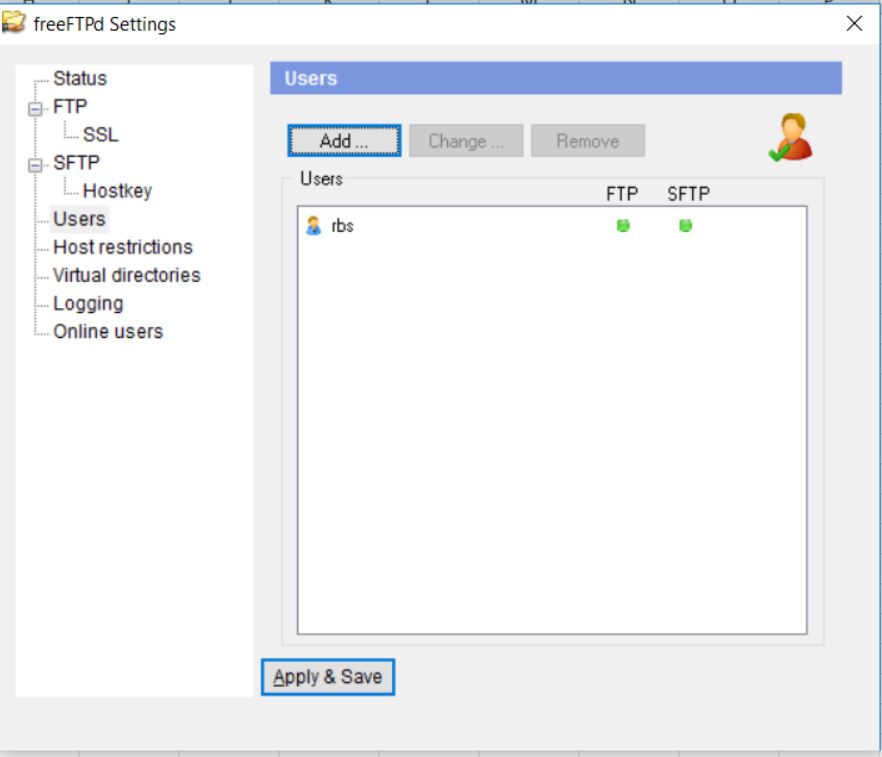
rbs user should be online after created
06. Start SFTP | aktifkan SFTP
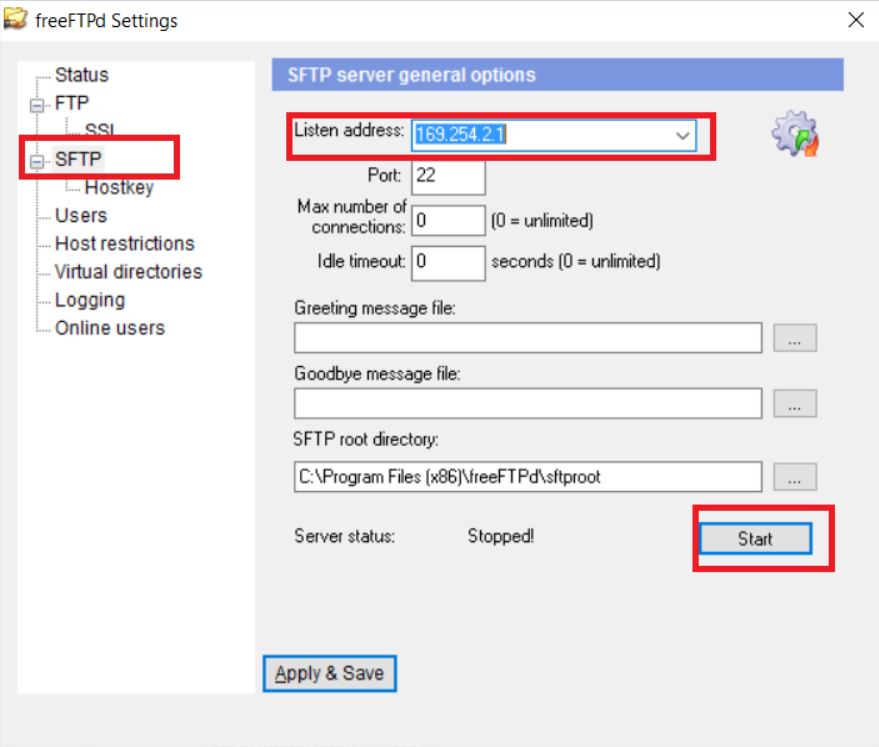
Select "SFTP"
Select Listen address to "169.254.2.1" or laptop ip address
then press "start"
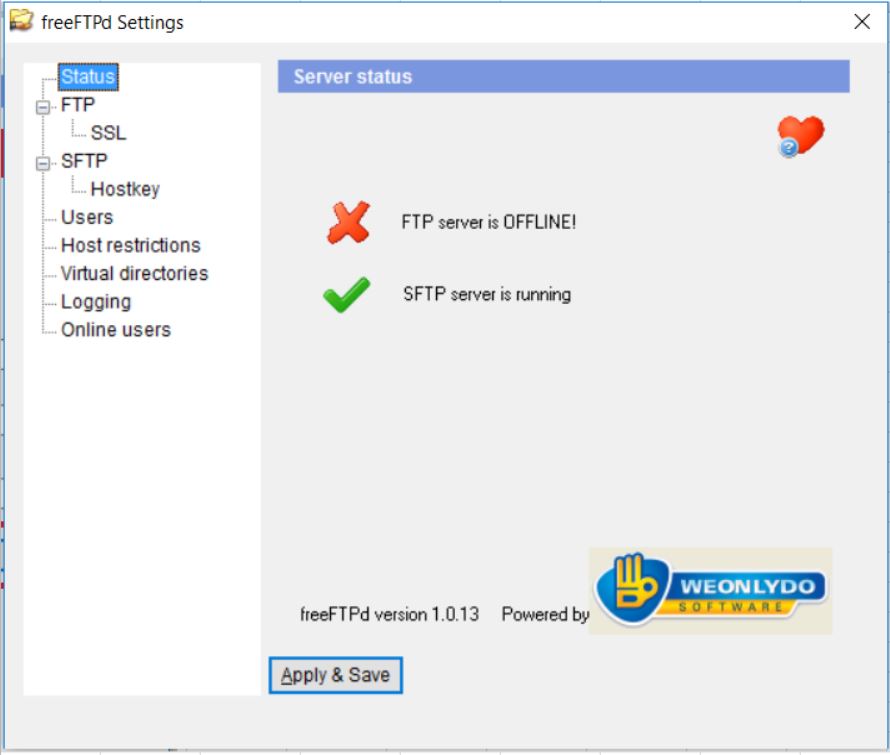
Check if SFTP server is running
go to home | back | go to top
Vila Mas Indah Blok C6 No.4, Kelurahan Perwira, Kecamatan Bekasi Utara. Kota Bekasi 17122
wa : 081382552971
ig : ari_surreni fb : wahyudin.shop
